Table of Contents High-Performance Computing (HPC) clusters are essential infrastructure for modern computational research, particularly in deep learning and scientific computing. Unlike cloud platforms where you pay per hour, university HPC systems provide access to enterprise-grade hardware through shared, scheduled resources.
This guide documents my journey setting up and using Sunbird , Swansea University's HPC cluster, which features 40 NVIDIA A100 GPUs. Whether you're training transformer models, running simulations, or processing large datasets, understanding how to effectively use HPC infrastructure is a critical skill.
Compute Resources
GPU Nodes - 5 nodes (scs2041-2045)GPUs per Node - 8× NVIDIA A100-PCIE-40GBTotal GPUs - 40 A100sCPU per Node - 64 cores (AMD/Intel, varies by node)RAM per Node - 515 GB (~64 GB per GPU)Storage - Lustre parallel filesystem (231 TB shared)
There are other nodes for pure computation, and less powerful NVIDIA V100s as well.
Partitions (Queues)
Partition GPUs Time Limit Purpose accel_ai A100 48 hours Production training accel_ai_dev A100 2 hours Development/testing gpu V100 48 hours Alternative GPU option compute None 72 hours CPU-only workloads
HPC systems follow a head node + compute node architecture.
┌─────────────────────────────────────────┐
│  LOGIN NODE                             │
│  - No GPUs                              │
│  - Job submission                       │
│  - File management                      │
│  - Code editing                         │
└─────────────────────────────────────────┘
              ↓
         (SLURM Scheduler)
              ↓
┌─────────────────────────────────────────┐
│  COMPUTE NODES (scs2041-2045)           │
│  - 8× A100 GPUs each                    │
│  - 64 CPUs                              │
│  - 515 GB RAM                           │
│  - Actual computation happens here      │
└─────────────────────────────────────────┘
┌─────────────────────────────────────────┐
│  LOGIN NODE                             │
│  - No GPUs                              │
│  - Job submission                       │
│  - File management                      │
│  - Code editing                         │
└─────────────────────────────────────────┘
              ↓
         (SLURM Scheduler)
              ↓
┌─────────────────────────────────────────┐
│  COMPUTE NODES (scs2041-2045)           │
│  - 8× A100 GPUs each                    │
│  - 64 CPUs                              │
│  - 515 GB RAM                           │
│  - Actual computation happens here      │
└─────────────────────────────────────────┘
You never SSH directly to compute nodes. All interaction happens through the SLURM scheduler.
University credentials and VPN
SSH client (built into Linux/macOS, PuTTY for Windows)
Basic command-line knowledge
# First connection (requires password)
ssh username@sunbird.swansea.ac.uk
# First connection (requires password)
ssh username@sunbird.swansea.ac.uk
SSH keys enable passwordless authentication and are essential for automated workflows.
On local machine
# Generate ED25519 key (modern, secure)
ssh-keygen -t ed25519 -C "your_email@swansea.ac.uk"

# Location - ~/.ssh/id_ed25519
# Passphrase - Optional (recommended for security)
# Generate ED25519 key (modern, secure)
ssh-keygen -t ed25519 -C " your_email@swansea.ac.uk "
# Location - ~/.ssh/id_ed25519
# Passphrase - Optional (recommended for security)
# Copy key to remote server
ssh-copy-id username@sunbird.swansea.ac.uk

# Manually (if ssh-copy-id unavailable):
cat ~/.ssh/id_ed25519.pub | ssh username@sunbird.swansea.ac.uk \
  "mkdir -p ~/.ssh && cat >> ~/.ssh/authorized_keys"
# Copy key to remote server
ssh-copy-id username@sunbird.swansea.ac.uk
# Manually (if ssh-copy-id unavailable):
cat ~/.ssh/id_ed25519.pub | ssh username@sunbird.swansea.ac.uk \
" mkdir -p ~/.ssh && cat >> ~/.ssh/authorized_keys "
On the HPC login node
chmod 700 ~/.ssh
chmod 600 ~/.ssh/authorized_keys
chmod 700 ~/.ssh
chmod 600 ~/.ssh/authorized_keys
Create ~/.ssh/config for easier connections.
Host sunbird
    HostName sunbird.swansea.ac.uk
    User your_username
    IdentityFile ~/.ssh/id_ed25519
    ServerAliveInterval 60
    ServerAliveCountMax 3
Host sunbird
    HostName sunbird.swansea.ac.uk
    User your_username
    IdentityFile ~/.ssh/id_ed25519
    ServerAliveInterval 60
    ServerAliveCountMax 3
Now connect with
# Test passwordless login
ssh sunbird "hostname"
# Should return sl2 (or similar login node)
# Test passwordless login
ssh sunbird " hostname "
# Should return sl2 (or similar login node)
Login node (sl2)
Submit jobs (sbatch, srun)
Edit code, organize files
Compile programs
No GPUs available
No heavy computation (against policy)
Compute nodes (scs2041-2045)
GPUs available
Heavy computation
Accessed via job scheduler
No direct SSH access
This will FAIL on login node
[user@sl2 ~ ]$ nvidia-smi
-bash: nvidia-smi: command not found
[ user@sl2 ~] $ nvidia-smi
-bash: nvidia-smi: command not found
This is expected! GPUs are only on compute nodes.
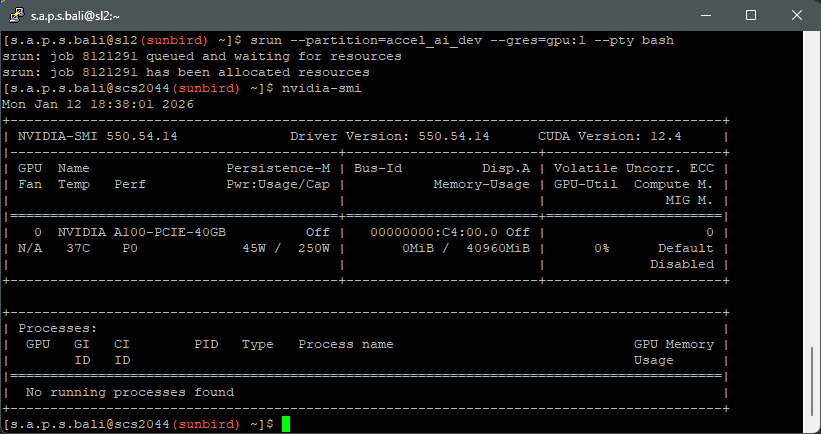
To verify GPU access, you must use srun to run the command on a compute node:
HPC systems use environment modules to manage software.
# List available modules
module avail

# Search for specific software
module avail cuda
module avail python

# Load modules
module load CUDA/12.4
module load anaconda/2024.06

# View loaded modules
module list

# Unload modules
module unload CUDA/12.4
# List available modules
module avail

# Search for specific software
module avail cuda
module avail python

# Load modules
module load CUDA/12.4
module load anaconda/2024.06

# View loaded modules
module list

# Unload modules
module unload CUDA/12.4
Example output
-------------------------------- /apps/modules/libraries ---------------------------------
CUDA/8.0    CUDA/10.1   CUDA/11.4   CUDA/12.4(default)
CUDA/9.0    CUDA/11.2   CUDA/11.6
CUDA/9.1    CUDA/11.3   CUDA/11.7
-------------------------------- /apps/modules/libraries ---------------------------------
CUDA/8.0    CUDA/10.1   CUDA/11.4   CUDA/12.4(default)
CUDA/9.0    CUDA/11.2   CUDA/11.6
CUDA/9.1    CUDA/11.3   CUDA/11.7
Output
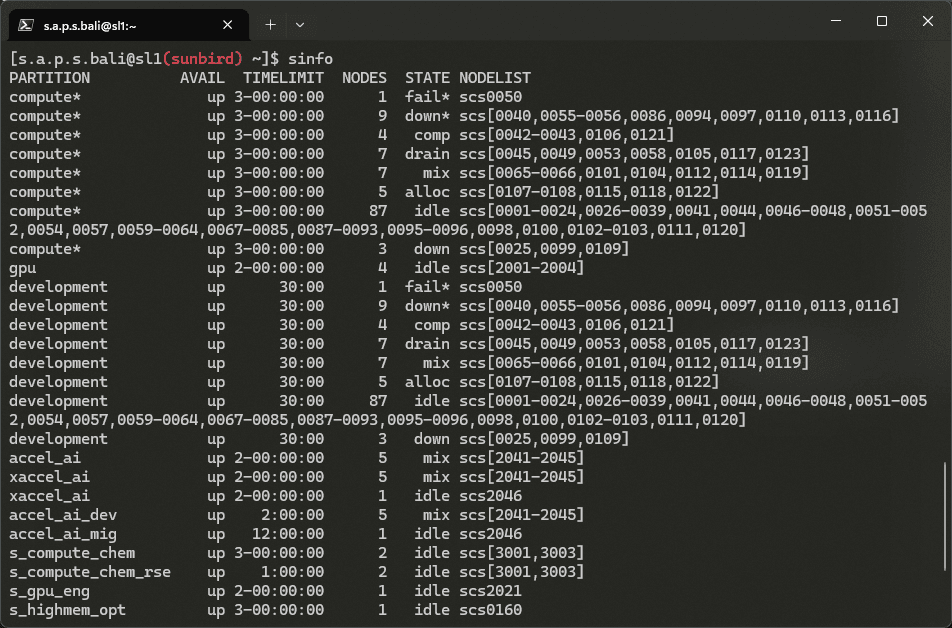
PARTITION   AVAIL  TIMELIMIT  NODES  STATE NODELIST
compute*       up 3-00:00:00     48  alloc scs[0026-0073]
compute*       up 3-00:00:00     44   idle scs[0001-0024,0059,0075-0078]
gpu            up 2-00:00:00      3    mix scs[2001-2003]
gpu            up 2-00:00:00      1   idle scs2004
accel_ai       up 2-00:00:00      5    mix scs[2041-2045]
PARTITION   AVAIL  TIMELIMIT  NODES  STATE NODELIST
compute*       up 3-00:00:00     48  alloc scs[0026-0073]
compute*       up 3-00:00:00     44   idle scs[0001-0024,0059,0075-0078]
gpu            up 2-00:00:00      3    mix scs[2001-2003]
gpu            up 2-00:00:00      1   idle scs2004
accel_ai       up 2-00:00:00      5    mix scs[2041-2045]
Key columns
PARTITION - Queue nameTIMELIMIT - Maximum job durationSTATE - Node status (idle/mix/alloc)NODELIST - Which nodes
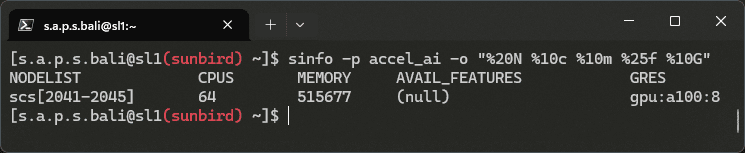
Shows individual nodes with CPU, memory, and GPU counts.
sinfo -p accel_ai -o "%20N %10c %10m %25f %10G"
sinfo -p accel_ai -o " %20N %10c %10m %25f %10G "
Output
NODELIST             CPUS       MEMORY     AVAIL_FEATURES            GRES
scs[2041-2045]       64         515677     (null)                    gpu:a100:8
NODELIST             CPUS       MEMORY     AVAIL_FEATURES            GRES
scs[2041-2045]       64         515677     (null)                    gpu:a100:8
Each node has 8 A100 GPUs
64 CPU cores
515 GB RAM
See who's using resources and how long jobs have been running.
sacctmgr show user $USER withassoc
sacctmgr show user $USER withassoc
Shows QoS (Quality of Service) limits, including
Maximum GPUs per job
Maximum nodes
Priority level
My limits
sbatch --test-only --partition=accel_ai --gres=gpu:4 --wrap "echo test"
# Success! Can request up to 4 GPUs

sbatch --test-only --partition=accel_ai --gres=gpu:5 --wrap "echo test"
# Error: QOSMaxGRESPerJob
# Cannot exceed 4 GPUs per job
sbatch --test-only --partition=accel_ai --gres=gpu:4 --wrap " echo test "
# Success! Can request up to 4 GPUs
sbatch --test-only --partition=accel_ai --gres=gpu:5 --wrap " echo test "
# Error: QOSMaxGRESPerJob
# Cannot exceed 4 GPUs per job
SLURM (Simple Linux Utility for Resource Management) handles job scheduling, resource allocation, and queue management.
1. Write job script (.sh file)
2. Submit job - sbatch script.sh
3. Job enters queue (PENDING)
4. Scheduler allocates resources
5. Job runs (RUNNING)
6. Job completes (COMPLETED)
7. Results in output files
1. Write job script (.sh file)
2. Submit job - sbatch script.sh
3. Job enters queue (PENDING)
4. Scheduler allocates resources
5. Job runs (RUNNING)
6. Job completes (COMPLETED)
7. Results in output files
State Abbreviation Meaning PENDING PD Waiting for resources RUNNING R Currently executing COMPLETED CD Finished successfully FAILED F Exited with error CANCELLED CA User cancelled
# Submit batch job
sbatch job_script.sh

# Submit interactive job
srun --partition=accel_ai_dev --gres=gpu:1 --pty bash

# Check job queue
squeue -u $USER

# Check all jobs in partition
squeue -p accel_ai

# Cancel job
scancel JOBID

# Cancel all our jobs
scancel -u $USER

# View job history
sacct -u $USER

# Detailed job info
scontrol show job JOBID
# Submit batch job
sbatch job_script.sh

# Submit interactive job
srun --partition=accel_ai_dev --gres=gpu:1 --pty bash

# Check job queue
squeue -u $USER

# Check all jobs in partition
squeue -p accel_ai

# Cancel job
scancel JOBID

# Cancel all our jobs
scancel -u $USER

# View job history
sacct -u $USER

# Detailed job info
scontrol show job JOBID
Reasons for pending jobs
squeue -u $USER -o "%.18i %.9P %.20j %.8u %.10T %.20R"
squeue -u $USER -o " %.18i %.9P %.20j %.8u %.10T %.20R "
Common reasons
(Resources) - No GPUs available(Priority) - Other jobs have higher priority(QOSMaxNodePerUserLimit) - You've hit your job limit(QOSMaxGRESPerJob) - Requesting too many GPUs
scripts/test_gpu.py
#!/usr/bin/env python3
"""
Test script to verify CUDA access
"""
import torch
from datetime import datetime
print ( "=" * 60 )
print ( f "GPU Test - { datetime.now() } " )
print ( "=" * 60 )
# System info
print ( f " \n PyTorch Version: { torch.__version__ } " )
print ( f "CUDA Available: { torch.cuda.is_available() } " )
if torch.cuda.is_available():
print ( f "CUDA Version: { torch.version.cuda } " )
print ( f "GPU Count: { torch.cuda.device_count() } " )
print ( f "GPU Name: { torch.cuda.get_device_name( 0 ) } " )
# Get GPU properties
props = torch.cuda.get_device_properties( 0 )
print ( f "GPU Memory: { props.total_memory / 1e9 :.2f } GB" )
# Simple computation test
print ( " \n Running matrix multiplication test..." )
size = 10000
a = torch.randn(size, size, device = 'cuda' )
b = torch.randn(size, size, device = 'cuda' )
c = torch.matmul(a, b)
print ( f "Successfully computed { size } × { size } matrix multiplication on GPU" )
print ( f "GPU Memory Used: { torch.cuda.memory_allocated( 0 ) / 1e9 :.2f } GB" )
else :
print ( "CUDA not available!" )
print ( "=" * 60 )
#!/usr/bin/env python3
"""
Test script to verify CUDA access
"""
import torch
from datetime import datetime
print (" = "* 60 )
print ( f "GPU Test - { datetime . now () } " )
print (" = "* 60 )
# System info
print ( f " \n PyTorch Version: { torch . __version__ } " )
print ( f "CUDA Available: { torch . cuda . is_available () } " )
if torch . cuda . is_available ():
print ( f "CUDA Version: { torch . version . cuda } " )
print ( f "GPU Count: { torch . cuda . device_count () } " )
print ( f "GPU Name: { torch . cuda . get_device_name ( 0 ) } " )
# Get GPU properties
props = torch . cuda . get_device_properties ( 0 )
print ( f "GPU Memory: { props . total_memory / 1e9 :.2f } GB" )
# Simple computation test
print (" \n Running matrix multiplication test... ")
size = 10000
a = torch . randn ( size , size , device =' cuda ')
b = torch . randn ( size , size , device =' cuda ')
c = torch . matmul ( a , b )
print ( f "Successfully computed { size } × { size } matrix multiplication on GPU" )
print ( f "GPU Memory Used: { torch . cuda . memory_allocated ( 0 ) / 1e9 :.2f } GB" )
else :
print (" CUDA not available! ")
print (" = "* 60 )
jobs/test_1gpu.sh
#!/bin/bash
#SBATCH --job-name=gpu_test
#SBATCH --output=logs/gpu_test_%j.out
#SBATCH --error=logs/gpu_test_%j.err
#SBATCH --partition=accel_ai_dev
#SBATCH --gres=gpu:1
#SBATCH --cpus-per-task=8
#SBATCH --mem=64G
#SBATCH --time=00:30:00
echo "=========================================="
echo "Job ID: $SLURM_JOB_ID "
echo "Node: $SLURM_NODELIST "
echo "Start: $( date )"
echo "=========================================="
# Load modules
module load CUDA/12.4
# Setup Python environment
export PATH = " $HOME /.local/bin: $PATH "
cd ~/project/myproject
# Run test
uv run python scripts/test_gpu.py
echo "=========================================="
echo "End: $( date )"
echo "=========================================="
#!/bin/bash
#SBATCH --job-name=gpu_test
#SBATCH --output=logs/gpu_test_%j.out
#SBATCH --error=logs/gpu_test_%j.err
#SBATCH --partition=accel_ai_dev
#SBATCH --gres=gpu:1
#SBATCH --cpus-per-task=8
#SBATCH --mem=64G
#SBATCH --time=00:30:00
echo " ========================================== "
echo " Job ID: $SLURM_JOB_ID "
echo " Node: $SLURM_NODELIST "
echo " Start: $( date )"
echo " ========================================== "
# Load modules
module load CUDA/12.4
# Setup Python environment
export PATH =" $HOME /.local/bin: $PATH "
cd ~/project/myproject
# Run test
uv run python scripts/test_gpu.py
echo " ========================================== "
echo " End: $( date )"
echo " ========================================== "
Directive Purpose Example --job-name Job identifier gpu_test --output Standard output file logs/test_%j.out --error Error output file logs/test_%j.err --partition Which queue accel_ai_dev --gres Generic resources (GPUs) gpu:1 --cpus-per-task CPU cores 8 --mem RAM 64G --time Time limit 00:30:00
%j is replaced with the job ID automatically.
# Create logs directory
mkdir -p logs

# Submit job
sbatch jobs/test_1gpu.sh

# O/P
Submitted batch job 8122476

# Check status
squeue -u $USER

# O/P
JOBID  PARTITION    NAME      USER   ST  TIME  NODES
8122476 accel_ai_dev gpu_test  user   PD  0:00  1
# Create logs directory
mkdir -p logs

# Submit job
sbatch jobs/test_1gpu.sh

# O/P
Submitted batch job 8122476

# Check status
squeue -u $USER

# O/P
JOBID  PARTITION    NAME      USER   ST  TIME  NODES
8122476 accel_ai_dev gpu_test  user   PD  0:00  1
# Watch queue (auto-refresh every 2 seconds)
watch -n 2 'squeue -u $USER'

# View log in real-time (once job starts)
tail -f logs/gpu_test_8122476.out

# Check job completion
sacct -j 8122476
# Watch queue (auto-refresh every 2 seconds)
watch -n 2 ' squeue -u $USER '
# View log in real-time (once job starts)
tail -f logs/gpu_test_8122476.out
# Check job completion
sacct -j 8122476
logs/gpu_test_8122476.out
==========================================
Job ID: 8122476
Node: scs2044
Start: Mon Jan 13 14:23:15 GMT 2026
==========================================
==========================================================
GPU Test - 2026-01-13 14:23:16.123456
==========================================================

PyTorch Version: 2.0.1+cu124
CUDA Available: True
CUDA Version: 12.4
GPU Count: 1
GPU Name: NVIDIA A100-PCIE-40GB
GPU Memory: 40.00 GB

Running matrix multiplication test...
Successfully computed 10000×10000 matrix multiplication on GPU
GPU Memory Used: 0.76 GB
==========================================================
==========================================
End: Mon Jan 13 14:23:18 GMT 2026
==========================================
==========================================
Job ID: 8122476
Node: scs2044
Start: Mon Jan 13 14:23:15 GMT 2026
==========================================
==========================================================
GPU Test - 2026-01-13 14:23:16.123456
==========================================================

PyTorch Version: 2.0.1+cu124
CUDA Available: True
CUDA Version: 12.4
GPU Count: 1
GPU Name: NVIDIA A100-PCIE-40GB
GPU Memory: 40.00 GB

Running matrix multiplication test...
Successfully computed 10000×10000 matrix multiplication on GPU
GPU Memory Used: 0.76 GB
==========================================================
==========================================
End: Mon Jan 13 14:23:18 GMT 2026
==========================================
Success! We've run our first GPU job on the HPC cluster.
One of the key advantages of HPC is the ability to scale across multiple GPUs. Here's how to progress from single-GPU to multi-GPU training.
scripts/test_distributed.py
#!/usr/bin/env python3
"""
Distributed training test using PyTorch DDP
"""
import torch
import torch.distributed as dist
import torch.multiprocessing as mp
from torch.nn.parallel import DistributedDataParallel as DDP
import os
def setup_distributed (rank, world_size):
"""Initialize distributed training"""
os.environ[ 'MASTER_ADDR' ] = 'localhost'
os.environ[ 'MASTER_PORT' ] = '29500'
dist.init_process_group(
backend = 'nccl' ,
world_size = world_size,
rank = rank
)
def cleanup_distributed ():
dist.destroy_process_group()
def train_worker (rank, world_size):
"""Worker function for each GPU"""
setup_distributed(rank, world_size)
# Set device for this process
torch.cuda.set_device(rank)
device = torch.device( f 'cuda: { rank } ' )
if rank == 0 :
print ( f "Running distributed training on { world_size } GPUs" )
print ( f "[Rank { rank } ] GPU: { torch.cuda.get_device_name(rank) } " )
# Simple computation on each GPU
tensor = torch.randn( 1000 , 1000 , device = device)
result = torch.matmul(tensor, tensor)
# Synchronize all processes
dist.barrier()
if rank == 0 :
print ( f "Distributed computation successful on { world_size } GPUs" )
cleanup_distributed()
def main ():
world_size = torch.cuda.device_count()
print ( f "Detected { world_size } GPUs" )
# Spawn process for each GPU
mp.spawn(
train_worker,
args = (world_size,),
nprocs = world_size,
join = True
)
if __name__ == "__main__" :
main()
#!/usr/bin/env python3
"""
Distributed training test using PyTorch DDP
"""
import torch
import torch . distributed as dist
import torch . multiprocessing as mp
from torch . nn . parallel import DistributedDataParallel as DDP
import os
def setup_distributed ( rank , world_size ):
""" Initialize distributed training """
os . environ [' MASTER_ADDR '] = ' localhost '
os . environ [' MASTER_PORT '] = ' 29500 '
dist . init_process_group (
backend =' nccl ',
world_size = world_size ,
rank = rank
)
def cleanup_distributed ():
dist . destroy_process_group ()
def train_worker ( rank , world_size ):
""" Worker function for each GPU """
setup_distributed ( rank , world_size )
# Set device for this process
torch . cuda . set_device ( rank )
device = torch . device ( f 'cuda: { rank } ' )
if rank == 0 :
print ( f "Running distributed training on { world_size } GPUs" )
print ( f "[Rank { rank } ] GPU: { torch . cuda . get_device_name ( rank ) } " )
# Simple computation on each GPU
tensor = torch . randn ( 1000 , 1000 , device = device )
result = torch . matmul ( tensor , tensor )
# Synchronize all processes
dist . barrier ()
if rank == 0 :
print ( f "Distributed computation successful on { world_size } GPUs" )
cleanup_distributed ()
def main ():
world_size = torch . cuda . device_count ()
print ( f "Detected { world_size } GPUs" )
# Spawn process for each GPU
mp . spawn (
train_worker ,
args =( world_size ,),
nprocs = world_size ,
join =True
)
if __name__ == " __main__ ":
main ()
jobs/test_4gpu.sh
#!/bin/bash
#SBATCH --job-name=test_4gpu
#SBATCH --output=logs/test_4gpu_%j.out
#SBATCH --error=logs/test_4gpu_%j.err
#SBATCH --partition=accel_ai_dev
#SBATCH --gres=gpu:4 # Request 4 GPUs
#SBATCH --cpus-per-task=32 # 8 CPUs per GPU
#SBATCH --mem=256G # 64 GB per GPU
#SBATCH --time=01:00:00
echo "=========================================="
echo "4-GPU Distributed Training Test"
echo "Job ID: $SLURM_JOB_ID "
echo "Node: $SLURM_NODELIST "
echo "GPUs: $SLURM_GPUS_ON_NODE "
echo "=========================================="
# Environment setup
module load CUDA/12.4
export PATH = " $HOME /.local/bin: $PATH "
cd ~/project/myproject
# Show all GPUs
nvidia-smi
# Run distributed test
uv run python scripts/test_distributed.py
echo "=========================================="
echo "Test Complete"
echo "=========================================="
#!/bin/bash
#SBATCH --job-name=test_4gpu
#SBATCH --output=logs/test_4gpu_%j.out
#SBATCH --error=logs/test_4gpu_%j.err
#SBATCH --partition=accel_ai_dev
#SBATCH --gres=gpu:4 # Request 4 GPUs
#SBATCH --cpus-per-task=32 # 8 CPUs per GPU
#SBATCH --mem=256G # 64 GB per GPU
#SBATCH --time=01:00:00
echo " ========================================== "
echo " 4-GPU Distributed Training Test "
echo " Job ID: $SLURM_JOB_ID "
echo " Node: $SLURM_NODELIST "
echo " GPUs: $SLURM_GPUS_ON_NODE "
echo " ========================================== "
# Environment setup
module load CUDA/12.4
export PATH =" $HOME /.local/bin: $PATH "
cd ~/project/myproject
# Show all GPUs
nvidia-smi
# Run distributed test
uv run python scripts/test_distributed.py
echo " ========================================== "
echo " Test Complete "
echo " ========================================== "
After running 1, 2, and 4 GPU tests, we can compare performance.
| GPUs | Time (s) | Speedup | Efficiency |
|------|----------|---------|------------|
| 1    | 120      | 1.0×    | 100%       |
| 2    | 62       | 1.94×   | ~97%        |
| 4    | 32       | 3.75×   | ~94%        |
| GPUs | Time (s) | Speedup | Efficiency |
|------|----------|---------|------------|
| 1    | 120      | 1.0×    | 100%       |
| 2    | 62       | 1.94×   | ~97%        |
| 4    | 32       | 3.75×   | ~94%        |
Scaling efficiency = (Speedup / # GPUs) × 100%
This demonstrates near-linear scaling!
Recommended approach
Local Machine (Windows/Mac/Linux)
    ↓
  Edit code in IDE (VS Code, PyCharm)
  Test on small data (CPU)
  Version control with Git
    ↓
  Transfer to HPC (rsync/scp/Git)
    ↓
HPC Login Node
    ↓
  Submit jobs to compute nodes
    ↓
HPC Compute Nodes
    ↓
  Training happens here
  Results saved
    ↓
  Download results back to local
    ↓
Local Machine
    ↓
  Analyze results, visualize
  Update code, repeat
Local Machine (Windows/Mac/Linux)
    ↓
  Edit code in IDE (VS Code, PyCharm)
  Test on small data (CPU)
  Version control with Git
    ↓
  Transfer to HPC (rsync/scp/Git)
    ↓
HPC Login Node
    ↓
  Submit jobs to compute nodes
    ↓
HPC Compute Nodes
    ↓
  Training happens here
  Results saved
    ↓
  Download results back to local
    ↓
Local Machine
    ↓
  Analyze results, visualize
  Update code, repeat
# Upload project to HPC
rsync -avz --exclude-from=.rsyncignore \
  ./myproject/ username@sunbird:~/project/myproject/

# Download results from HPC
rsync -avz username@sunbird:~/project/myproject/results/ \
  ./results/
# Upload project to HPC
rsync -avz --exclude-from=.rsyncignore \
  ./myproject/ username@sunbird:~/project/myproject/

# Download results from HPC
rsync -avz username@sunbird:~/project/myproject/results/ \
  ./results/
# Upload file
scp script.py username@sunbird:~/project/myproject/scripts/

# Download file
scp username@sunbird:~/project/myproject/results/model.pth ./
# Upload file
scp script.py username@sunbird:~/project/myproject/scripts/

# Download file
scp username@sunbird:~/project/myproject/results/model.pth ./
# On local machine
git push origin main

# On HPC
git pull origin main
# On local machine
git push origin main

# On HPC
git pull origin main
.rsyncignore
# Version control
.git/

# Python
__pycache__/
*.pyc
.venv/
venv/

# Large data (upload separately)
data/*.jpg
data/*.png
*.tar.gz
*.zip

# Results (download, don't upload)
results/
logs/
checkpoints/

# IDE
.vscode/
.idea/
# Version control
.git/

# Python
__pycache__/
*.pyc
.venv/
venv/

# Large data (upload separately)
data/*.jpg
data/*.png
*.tar.gz
*.zip

# Results (download, don't upload)
results/
logs/
checkpoints/

# IDE
.vscode/
.idea/
DO
Use accel_ai_dev for testing (2h limit)
Use accel_ai for production (48h limit)
Request only resources you need
Cancel jobs you no longer need
Start small and scale up
DON'T
Run heavy computation on login nodes
Request maximum resources "just in case"
Leave forgotten jobs in queue
Submit hundreds of jobs simultaneously
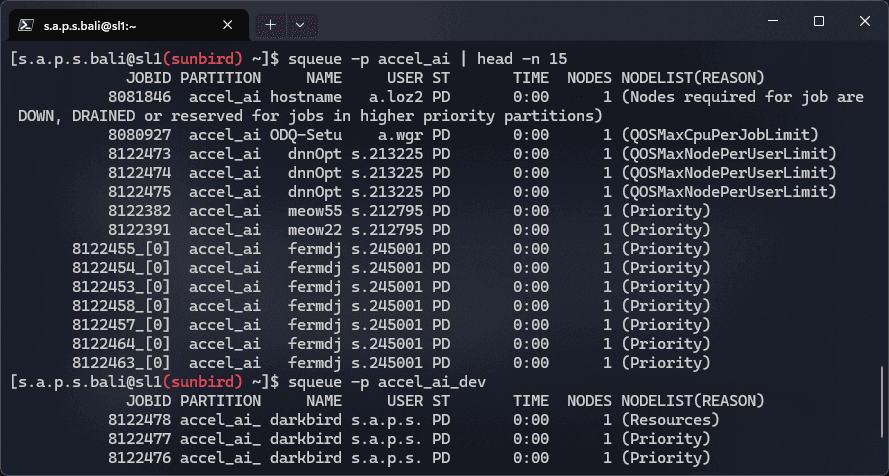
Observation from real queue
$ squeue -p accel_ai
# 25 jobs running
# 18 jobs from single user
# Some jobs running 24+ hours
# My 3 jobs: PENDING (Resources)
$ squeue -p accel_ai
# 25 jobs running
# 18 jobs from single user
# Some jobs running 24+ hours
# My 3 jobs: PENDING (Resources)
Lessons
Popular systems have wait times
Some users submit many jobs (fair-share limits help)
Long-running jobs occupy resources for days
Plan for wait times in your schedule
Strategy
Submit jobs overnight (less competition)
Use --test-only to estimate start time
Have backup work while waiting
Common issues and solutions
Problem Solution Job fails immediately Check error log - logs/job_*.err Out of memory Reduce batch size or request more RAM CUDA not found Load CUDA module - module load CUDA/12.4 Package import fails Check environment - uv run python -c "import torch" Job pending forever Check - squeue -u $USER -o "%.20R"
Useful commands
# Real-time queue monitoring
watch -n 5 'squeue -u $USER'

# Job resource usage
sstat -j JOBID --format=JobID,MaxRSS,MaxVMSize,AveCPU

# Historical job info
sacct -j JOBID --format=JobID,JobName,Elapsed,State,MaxRSS

# Live log viewing
tail -f logs/job_12345.out

# Check GPU utilization (in interactive session)
watch -n 1 nvidia-smi
# Real-time queue monitoring
watch -n 5 ' squeue -u $USER '
# Job resource usage
sstat -j JOBID --format=JobID,MaxRSS,MaxVMSize,AveCPU
# Historical job info
sacct -j JOBID --format=JobID,JobName,Elapsed,State,MaxRSS
# Live log viewing
tail -f logs/job_12345.out
# Check GPU utilization (in interactive session)
watch -n 1 nvidia-smi
Lessons learned with UV package manager
# PyTorch requires special index
uv pip install torch --index-url https://download.pytorch.org/whl/cu124

# Standard packages work normally
uv pip install numpy pandas matplotlib

# Verify installation
uv run python -c "import torch; print(torch.cuda.is_available())"
# PyTorch requires special index
uv pip install torch --index-url https://download.pytorch.org/whl/cu124
# Standard packages work normally
uv pip install numpy pandas matplotlib
# Verify installation
uv run python -c " import torch; print(torch.cuda.is_available()) "
What to document
Job IDs and purposes
Resource requests (GPUs, RAM, time)
Results and performance metrics
Issues encountered and solutions
Scaling efficiency measurements
Example log
Job 8122476: 1-GPU test
- Partition: accel_ai_dev
- Resources: 1 GPU, 8 CPUs, 64G RAM
- Runtime: 3 minutes
- Result: Success, 0.76 GB GPU memory

Job 8122477: 2-GPU test
- Partition: accel_ai_dev
- Resources: 2 GPUs, 16 CPUs, 128G RAM
- Runtime: Pending (Resources)
- Wait time: ~4 hours
Job 8122476: 1-GPU test
- Partition: accel_ai_dev
- Resources: 1 GPU, 8 CPUs, 64G RAM
- Runtime: 3 minutes
- Result: Success, 0.76 GB GPU memory

Job 8122477: 2-GPU test
- Partition: accel_ai_dev
- Resources: 2 GPUs, 16 CPUs, 128G RAM
- Runtime: Pending (Resources)
- Wait time: ~4 hours
Connection timeouts in VS Code terminal
Issue - SSH works in standalone terminal but freezes in VS CodeSolution - Use external terminal (Windows Terminal) for interactive SSHLesson - IDE terminals have limitations with interactive sessions
Old glibc version
Issue - Sunbird runs CentOS 7 (glibc 2.17), modern software needs 2.28+Solution - Use PyTorch's CUDA-specific wheel repositoryLesson - HPC systems prioritize stability over latest OS versions
Queue wait times
Issue - Jobs pending for hours due to resource contentionSolution - Submit overnight, use development partition for testingLesson - Shared resources require patience and planning
Working with HPC infrastructure requires a different mindset than cloud computing or local development.
# Connection
ssh sunbird

# Queue Management
sbatch job.sh          # Submit job
squeue -u $USER        # Check your jobs
scancel JOBID          # Cancel job
sacct -u $USER         # Job history

# System Info
sinfo                  # Partition status
sinfo -Nel             # Detailed nodes
module avail           # Available software
module load X          # Load module

# File Transfer
rsync -avz local/ sunbird:remote/    # Upload
rsync -avz sunbird:remote/ local/    # Download
scp file sunbird:~/                  # Quick upload

# Monitoring
tail -f logs/job.out   # Watch log
watch squeue -u $USER  # Watch queue
nvidia-smi             # GPU status (compute node only)
# Connection
ssh sunbird

# Queue Management
sbatch job.sh          # Submit job
squeue -u $USER        # Check your jobs
scancel JOBID          # Cancel job
sacct -u $USER         # Job history

# System Info
sinfo                  # Partition status
sinfo -Nel             # Detailed nodes
module avail           # Available software
module load X          # Load module

# File Transfer
rsync -avz local/ sunbird:remote/    # Upload
rsync -avz sunbird:remote/ local/    # Download
scp file sunbird:~/                  # Quick upload

# Monitoring
tail -f logs/job.out   # Watch log
watch squeue -u $USER  # Watch queue
nvidia-smi             # GPU status (compute node only)
About this guide
This guide documents real experiences setting up and using HPC infrastructure for deep learning research. All examples are based on actual commands, outputs, and challenges encountered on Swansea University's Sunbird cluster.